The following is described here:
Texts are created in the Text database in the system language of your site. You can also, from the same location, translate the text into the applicable languages.
Texts can then be referenced from various locations (i.e., Application, User groups, Users, Items, Catalogues and Catalogue elements).
Text types (which are preloaded) are used when connecting texts from the Text database to different objects. They control in what parts of the site the texts will be visible.
Example:
If a text is connected to a user and the text type Welcome text is selected, the user will see the text in the Welcome area of the Welcome page.
Create a new text
- Select Text database.
- Click New.
- You access the New text database window:
- Text database id
- Enter the identification.
- Language
- Select the applicable language for the text from the drop down list.
- Text
- Enter the actual text in the system language.
- Supported substitution parameters
- This field displays the preloaded substitution parameters that can be used to create dynamic texts. Since the substitution parameters will be replaced by the corresponding values when NetStore is run, the same text can be used for many customers, users, applications, etc.
- Note: The substitution parameters cannot be used for item and catalogue related texts.
Panel image

Enter the following information:
Click OK.
Translate a text
To translate a text into another language, do as follows:
- Click the Copy and translate button for the applicable text database id.
- Select the applicable language, into which you want to translate the text, from the drop down list. Enter the translated text in the Text area and click OK.
Connect a text
You can connect texts to Application, User groups, Users, Items, Catalogues and Catalogue elements. The procedure is similar for all. However, the text types for Items and Catalogues are not user-related. The following shows how to connect text to a user.
- Click User.
- Click the Edit button for the user to which you want to connect a text.
- Click the Texts button.
- Click New.
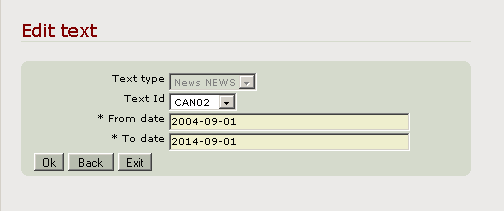
- You access the New text window:
- Text type
- Select the area of the site on which you want this text to appear.
- Text id
- Select the text id (from the Text database) that contains the text you want to appear.
- From date
- Defaults with today’s date, but can be changed. Enter the date from which the text should appear.
- To date
- Defaults with today’s date plus 10 years. Enter the date to which the text should appear.
Panel image
Click OK.
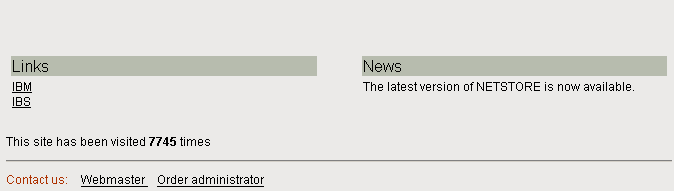
This text will be available to this user in the News area of the start page when he/she signs on. See example below:
Panel image
Exit the routine.
Related topics
- About setting up and managing your site
- Configure on application level
- Configure/modify settings
- Configure the settings for sundry users
- Configure and connect data restrictions
- Configure pages
- Define and connect links
- Configure and connect multimedia
- Set up contacts
- Create and connect descriptions
- Configure shipment tracking