Item search databases are essentially an easy way of limiting the amount of information you want to be available for searching on your site.
IBS NetStore provides the following two ways to expose your products:
- Item catalogues
- Product search facility
Your company may choose to use both methods, or only one of the above.
With the Product search facility you can choose from one of the following:
- Expose all products in the IBS Enterprise Item file, meaning all products will be available for searching.
Note: The Default database definition has already been configured (see paragraph Default). - Create Item search database(s).
As you could have thousands of items registered in the IBS Enterprise Item file, it is more than likely that not everything is suitable for browsing (selling) on the Internet.
The creation of Item search databases lets you extract the information most relevant from the Item file.
IBS NetStore provides the following two preloaded Item search databases:
- Default – This database references the following two Data restrictions:
- Item restriction = DEFAULT which does not include any delete-marked or fictitious items.
- Language restriction = DEFAULT which only includes the English and Swedish languages.
- All – This database does not include any item restriction, but does include the same language restriction as mentioned above.
The creation of an Item search database is a several step process which is described here.
- You first create the database definition, where you point to any applicable data restrictions, (ultimately defining the selection criteria for the database, i.e., include/exclude the items applicable and applicable languages).
- You then generate the database (as a batch run or interactively), in the applicable languages desired (assuming the languages are supported and have been configured; see About setting up and managing your site). If the foreign descriptions have been entered for the items in the Item file, visitors and/or NetStore users will be able to search for the items in the applicable language.
- You can then connect the database on Application level, which will be the default database, (thereby allowing all visitors to your site access, via searching), to only those items available in the database.
- If you want to offer your NetStore users special search database versions, you can create and generate these databases and then connect them to the applicable User/User group.
Creating an item search database
- Click Item search database definition.
- Click New.
- You access the New item search database definition window:
- Code
- Description
- Item restriction
- Select the applicable item restriction from the drop down list.
- Language restriction
- Select the applicable language restriction from the drop down list.
Panel image
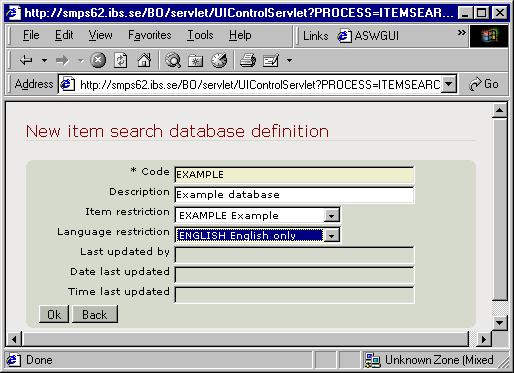
Complete the following information:
The remaining fields are updated during the generation process. Click OK.
Generating/Synchronising the database
You can generate and/or synchronise a new/existing database. The synchronisation process allows any changes that have taken place in the IBS Enterprise Item file to be updated in an existing generated database. To generate/synchronise an item search database, do as follows:
- Click Item search database update.
- You access the Item search database generation window:
- Item search database
- Select the applicable item search database definition from the drop down list.
- Submit to batch
- Check this box if you want to submit the job in a batch run.
- Generate to generate a new database.
- Synchronization to update any changes from the Item file to an already existing item search database. If there is nothing to synchronise, you will receive a message.
Panel image
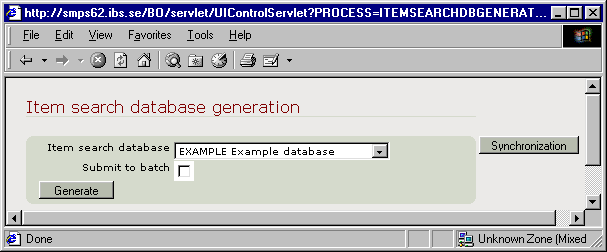
Toggle the different functions by clicking the applicable button:
You will receive a confirmation message on the bottom of the window after completion. One record will be created for each applicable item/language, which you can view by clicking Item search database.
Connect on Application level
- Click Application.
- Click the Settings button.
- Click the Edit button for the ItemSearchDatabase.
- On the Edit setting window, enter the applicable Item search database definition in the Value field and click OK.
Connect to a User group and/or User
The procedure is the same for User Group and User. The only difference is the access in.
- Click User Group or User.
- Click the Edit button for the applicable User group or User.
- Click the Settings button.
- On the Settings window, click New.
- On the New setting window, select the applicable preloaded setting type for catalogues (i.e. ItemSearchDatabase). Click OK.
- On the Edit setting window, enter the applicable value (i.e. the name of the Item search database) and click OK.
When the NetStore user runs a Product search, he/she will only retrieve a list of the applicable items.
Exit the routine.