The next step in the process is to build the catalogue structure (i.e., design the hierarchy by connecting categories to catalogues and eventually adding the items).
The following steps are described here:
Connect categories
- Click Catalogue.
- Click the Edit structure button for the applicable catalogue.
- You access the Catalogue details window:
Panel image
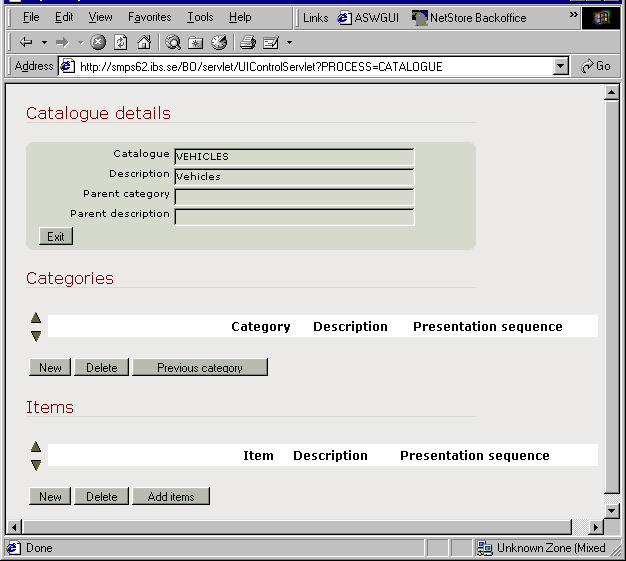
When you define the hierarchy you have several choices. You can connect your categories on the same level as each other, or you can create sub-ordinate levels of categories.
- Same level categories:
- Under Categories, click New.
- On the New category window, select the applicable category from the drop down list and enter the Presentation sequence (if applicable). Click OK to return to the Catalogue details window.
- Continue to connect as many categories on this level as desired.
- Sub-ordinate level categories:
- Click the Next category button for the applicable category.
- Click New.
- On the New category window, select the applicable category from the drop down list and enter the Presentation sequence (if applicable). Click OK.
- Continue to connect as many categories as desired on this level. Alternatively, click Previous category to return to the highest level in the structure.
Add the Items
- Access the category under which you want to add items, by clicking the Next category button for the applicable category.
- Under Items, click the Add items button.
- On the Select items window, mark the applicable items and click Select. Click Back.
- You return to the Catalogue details window:
Panel image
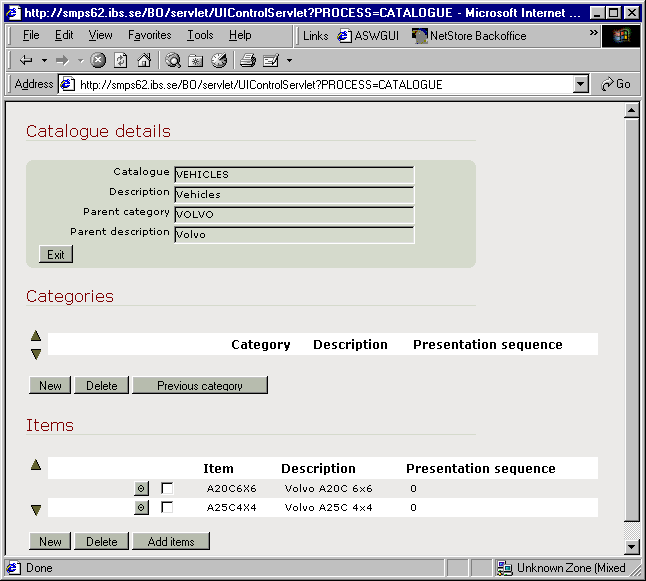
Continue to add items under the applicable categories as desired. You can also change the Presentation sequence of any added items by clicking the Edit button for the item.
Click Exit when finished.
Assign attention code to items
- Click Catalogue elements.
- On the Catalogue elements window, select Item from the drop down list for field Element type and then click Search.
- Click the Edit button for the applicable item
- You access the Edit catalogue item window:
Panel image
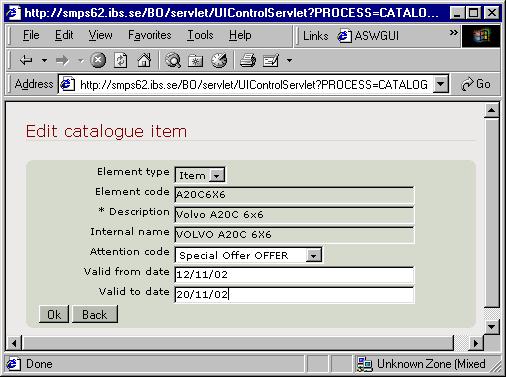
Select the applicable Attention code and, if applicable, enter the Valid from and to dates. Click OK. Exit the routine.