Since the purchase order is immediately created after the manufacturing order is created, this type of processing is most common. It eliminates several steps in the work flow. (See Work flow for creation of direct purchase orders with and without direct issue).
The type of purchase order creation and the type for issuing the component are important for this process.
Availability control
Remember that availability control for items defined as item class 2 is performed. If there is stock available for the required quantity, no purchase order will be created.
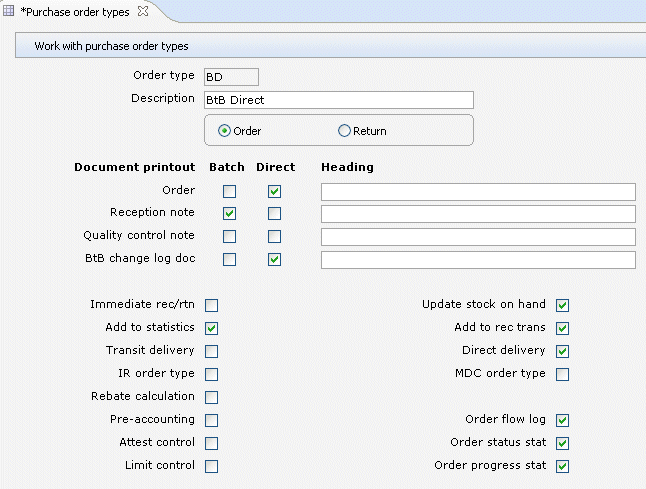
For this task, you will use the following purchase order type (and its attributes):
Panel image
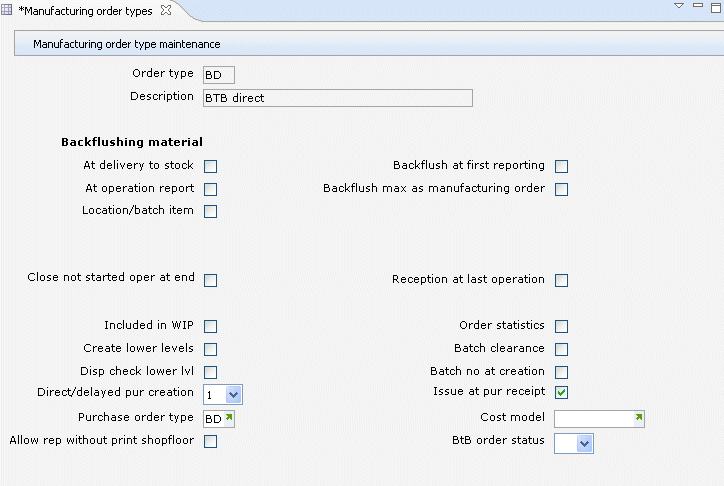
The connecting manufacturing order type has been set up as follows. The manufacturing order type must be defined with Dir/delayed pur as direct creation (1), Issue at pur receipt set to YES and have a Purchase order type defined.
Panel image
The item has been assigned both a Transit and Direct delivery for the BtB warehouse. Note: The manufacturing order type controls how the goods will be handled when it arrives.
- Select the Work with manufacturing orders menu item.
- You access Work with manufacturing order. Click Add to add a new order.
- You access Manufacturing order maintenance. Enter the Item, Warehouse, Quantity, Order type, Start date (and time) or Completion date (and time) and click OK.
- You access Manufacturing order maintenance, Header. At this time, the purchase order has been created for the component defined as item class 2 and items defined as fictitious. Exit the routine.
Related topics
- About processing direct purchase for manufacturing orders
- Work flow for creation of direct purchase orders with and without direct issue
- Set up the parameters for the direct purchase for manufacturing functionality
- Enter a manufacturing order with manual creation of the purchase order and manual issue to manufacturing order